Xurrent (4me) Integration
What is the Xurrent Integration?
The Xurrent integration connects Tripl-i's CMDB with Xurrent's (formerly 4me) ITSM platform, enabling seamless synchronization of your Configuration Items and automated change risk analysis powered by AI.
Why Use This Integration?
- Unified Asset Management: Keep your CMDB and ITSM platform in sync automatically
- AI-Powered Change Analysis: Get automated risk assessments for change requests
- Eliminate Manual Data Entry: Stop duplicating CI information across systems
- Flexible Product Mapping: Choose between simple category-based or detailed brand/model mapping
- Maintain Data Accuracy: Ensure both systems have the same, up-to-date information
- Streamline ITSM Workflows: Leverage Tripl-i's discovery data in your service management processes
Key Features
CI Synchronization
Export Configuration Items discovered by Tripl-i directly to Xurrent, including:
- Hardware details (servers, workstations, network devices)
- Software inventory
- CI relationships and dependencies
- Custom fields and attributes
AI Change Manager
When enabled, Tripl-i automatically analyzes change requests in Xurrent:
- Risk Scoring: Technical, business, and dependency risk scores (0-100)
- Impact Analysis: Identifies affected systems and potential user impact
- Recommendations: Pre-change, during-change, and post-change action items
- CAB Support: Generates talking points for Change Advisory Board meetings
Dual Mapping Strategies
Tripl-i offers two flexible approaches for mapping your CIs to Xurrent products:
1. Single Product Mode (Category Mapping)
Assign all CIs of a type (e.g., all Servers) to a single Xurrent product.
Best for:
- Quick setup without granular mapping
- Homogeneous environments with similar hardware
- Organizations with generic product catalogs
- Standardized infrastructure
Example:
- All Servers → "Generic Server Product"
- All Workstations → "Standard Workstation Product"
2. Brand/Model Mapping (Product Mapping)
Map specific hardware combinations (manufacturer + model) to distinct Xurrent products.
Best for:
- Heterogeneous environments with diverse hardware
- Precise hardware tracking and reporting
- Organizations requiring detailed asset categorization
- Warranty and maintenance tracking by specific models
Example:
- Dell PowerEdge R740 → "Dell Server R740 Product"
- HP ProLiant DL380 → "HP Server DL380 Product"
- Lenovo ThinkPad T14 → "Lenovo ThinkPad T14 Product"
Getting Started
Prerequisites
Before configuring the Xurrent integration, ensure you have:
- Xurrent Account with API access enabled
- API Credentials:
- For OAuth 2.0: Client ID and Client Secret with required scopes (see below)
- For Bearer Token: API Token with appropriate permissions
- Account ID: Your Xurrent account identifier
- Support Team: At least one support team configured in Xurrent
- Products: Products defined in Xurrent for your CI types (or permission to create them)
Required OAuth Scopes
When creating your OAuth application in Xurrent, ensure the following scopes are granted:
| Scope | Purpose |
|---|---|
account:read | Read account information |
ci:read | Search and read Configuration Items |
ci:write | Create and update Configuration Items |
product:read | Search and list products for mapping |
product:write | Create new products (optional) |
product_category:read | List product categories |
team:read | List support teams for assignment |
Additional scopes for AI Change Manager:
| Scope | Purpose |
|---|---|
webhook:read | Check existing webhooks |
webhook:write | Create webhooks for change notifications |
ui_extension:read | Check existing UI extensions |
ui_extension:write | Create UI extensions for AI results |
task_template:read | Check existing task templates |
task_template:write | Create AI assessment task templates |
automation_rule:read | Check existing automation rules |
automation_rule:write | Create automation rules |
task:read | Read task details |
task:write | Update tasks with AI analysis results |
note:write | Add notes to tasks |
Minimum scope for CI sync only: account:read, ci:read, ci:write, product:read, product_category:read, team:read
Full scope for all features (recommended): account:read, ci:read, ci:write, product:read, product:write, product_category:read, team:read, webhook:read, webhook:write, ui_extension:read, ui_extension:write, task_template:read, task_template:write, automation_rule:read, automation_rule:write, task:read, task:write, note:write
Configuration Methods
Tripl-i provides two ways to configure your Xurrent integration:
Method 1: Setup Wizard (Recommended for New Configurations)
The Setup Wizard provides a guided, step-by-step approach perfect for first-time setup.
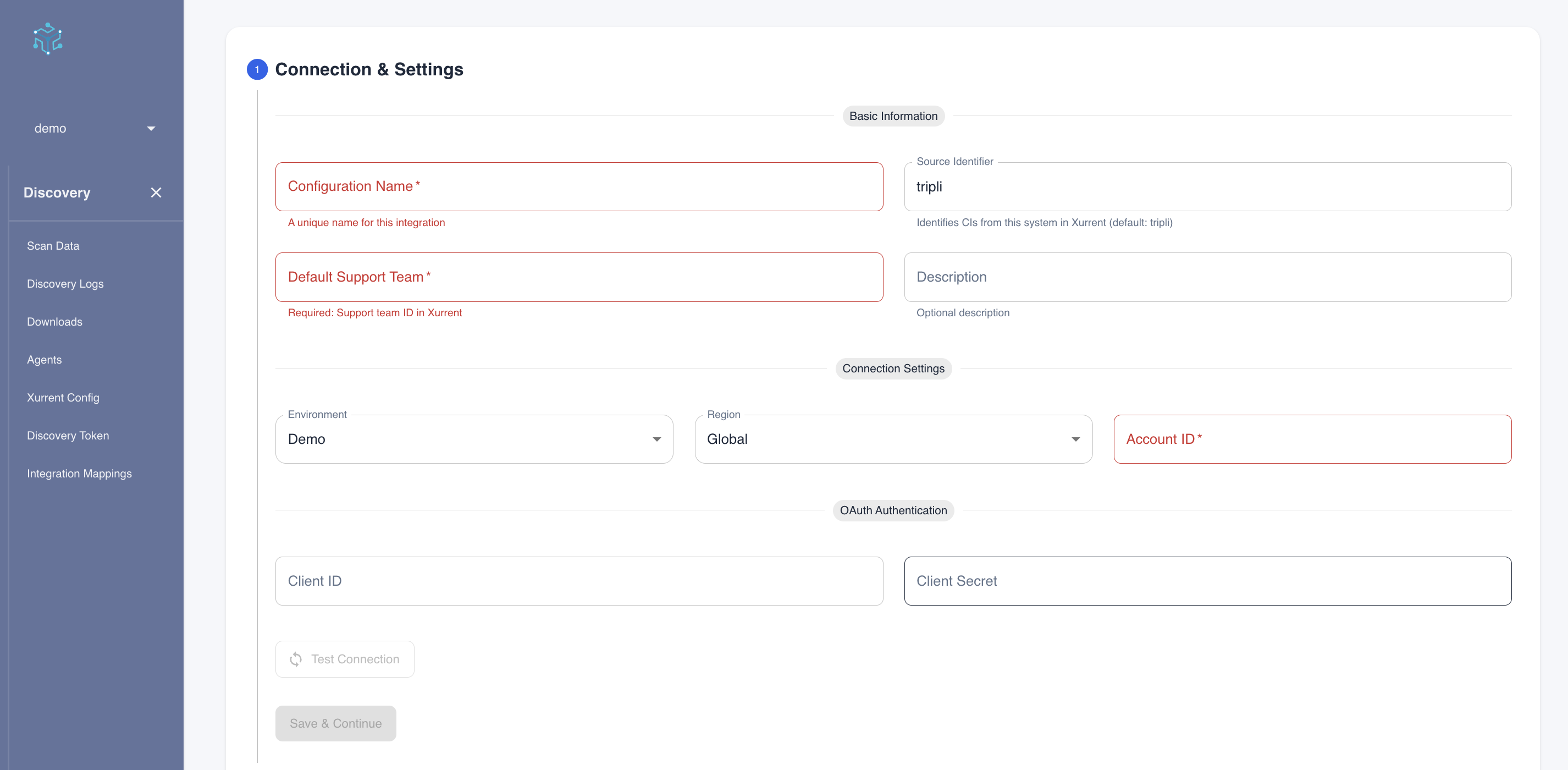
Step 1: Basic Configuration
- Navigate to CMDB → Integrations → Xurrent
- Click Add Integration
- Enter a Name for your configuration
- Select Environment: Choose your Xurrent environment
- Production (graphql.xurrent.com)
- QA (graphql.xurrent-qa.com)
- Demo (graphql.xurrent-demo.com)
- Select Region: Choose your geographic region
- Global (International)
- Australia (sdk-au.xurrent.com)
- UK (sdk-uk.xurrent.com)
- Switzerland (sdk-ch.xurrent.com)
- US (sdk-us.xurrent.com)
- Enter Account ID: Your Xurrent account identifier
- Choose Authentication Method:
- OAuth 2.0 (Recommended): Enter Client ID and Client Secret
- Bearer Token: Enter your API token
- Click Test Connection to verify your credentials
- Select Default Support Team: Choose the team that will be assigned to synced CIs
- Click Next
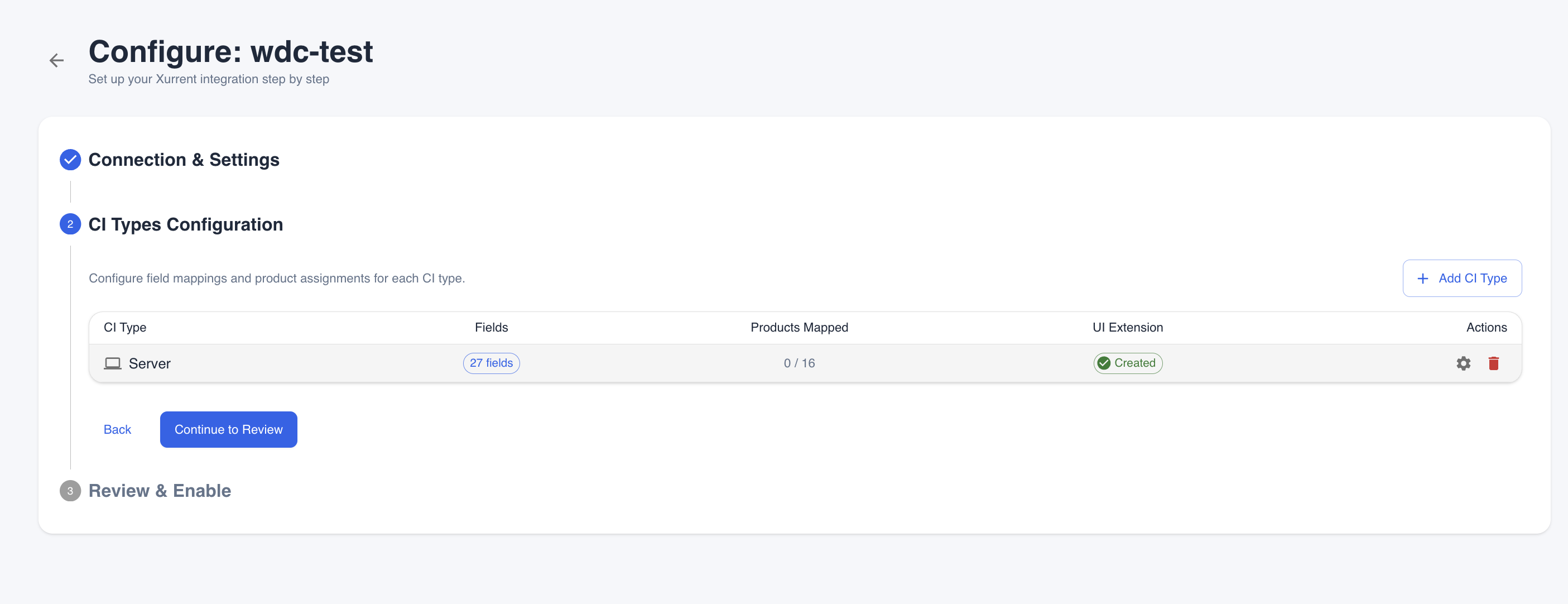
Step 2: Select CI Types
- Review the list of available CI types (Server, Workstation, Monitor, etc.)
- Click Add CI Type to configure a new type for synchronization
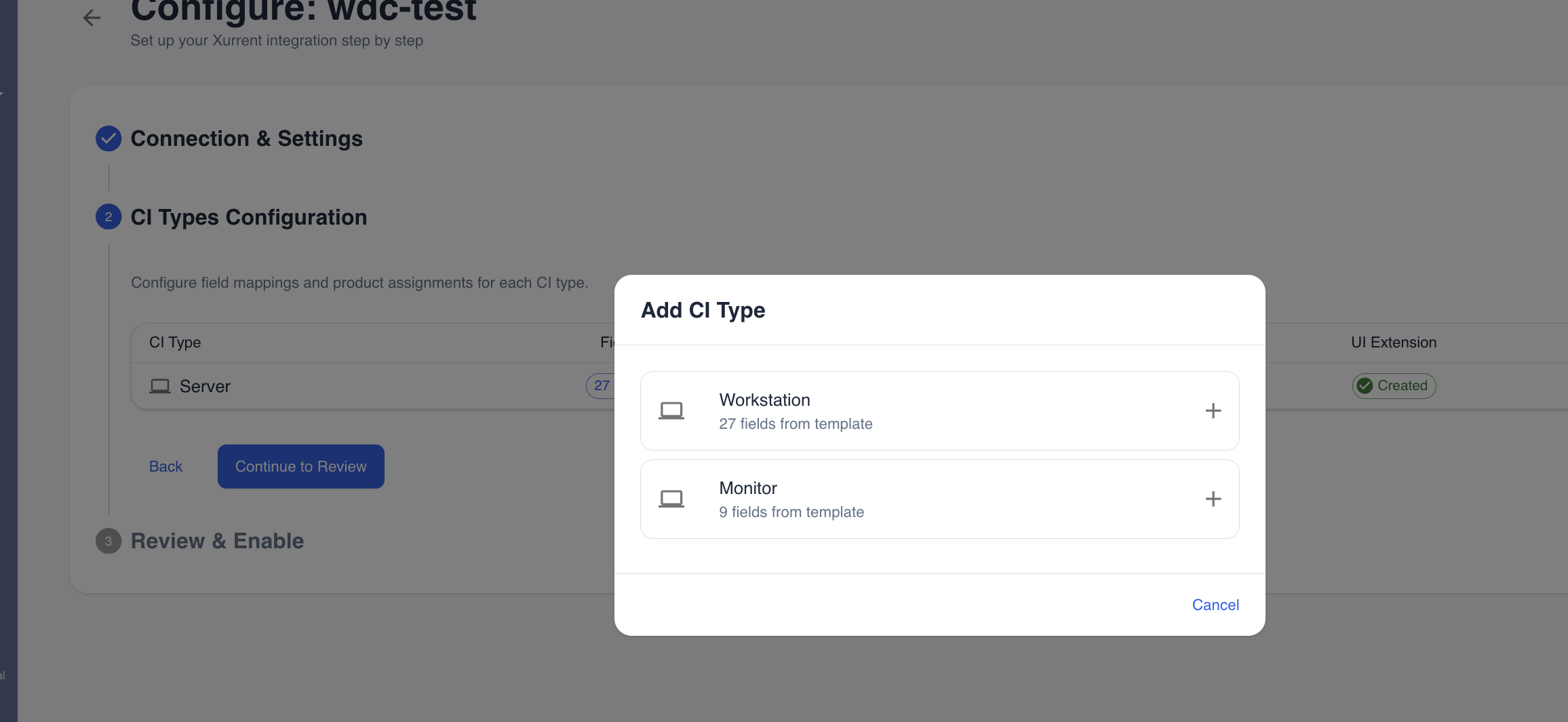
- Select the CI type you want to sync
- Click Add to proceed to configuration
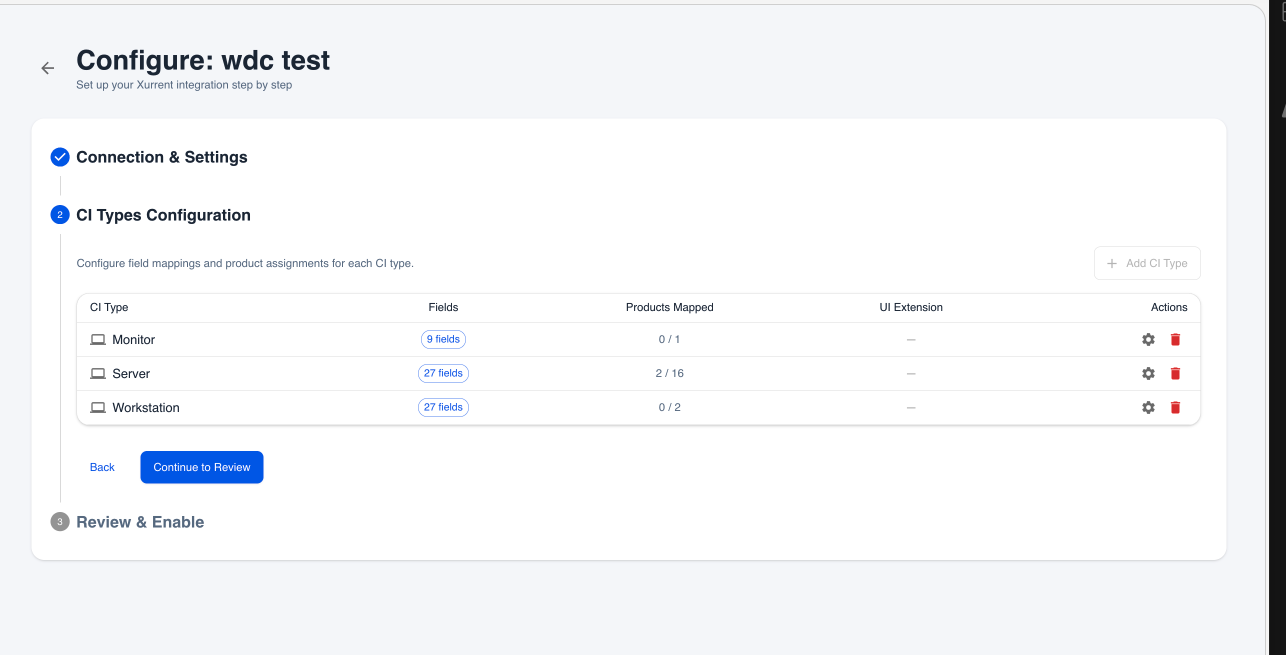
Step 3: Configure Product Mapping
For each CI type, choose your mapping strategy:
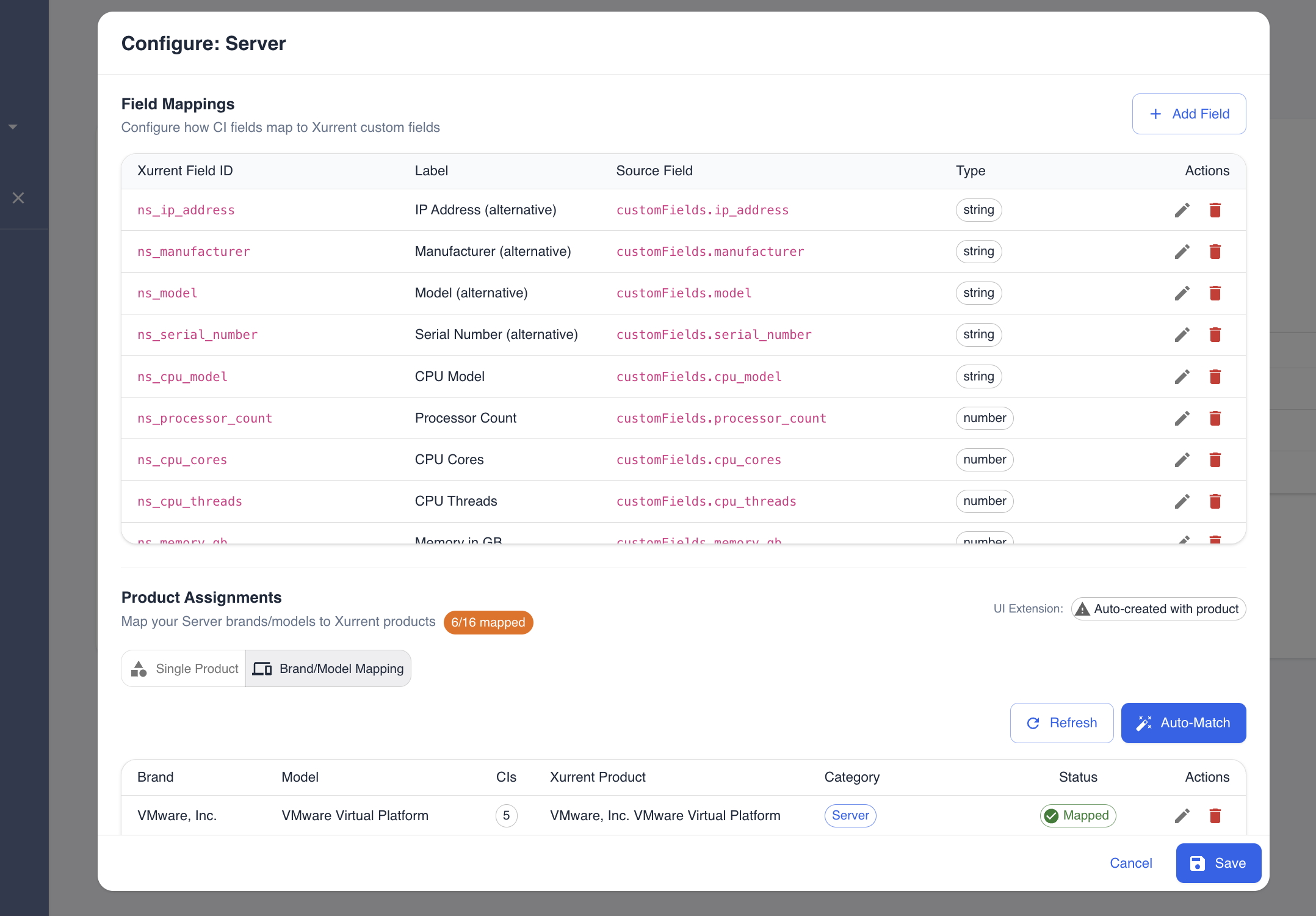
Option A: Single Product Mode
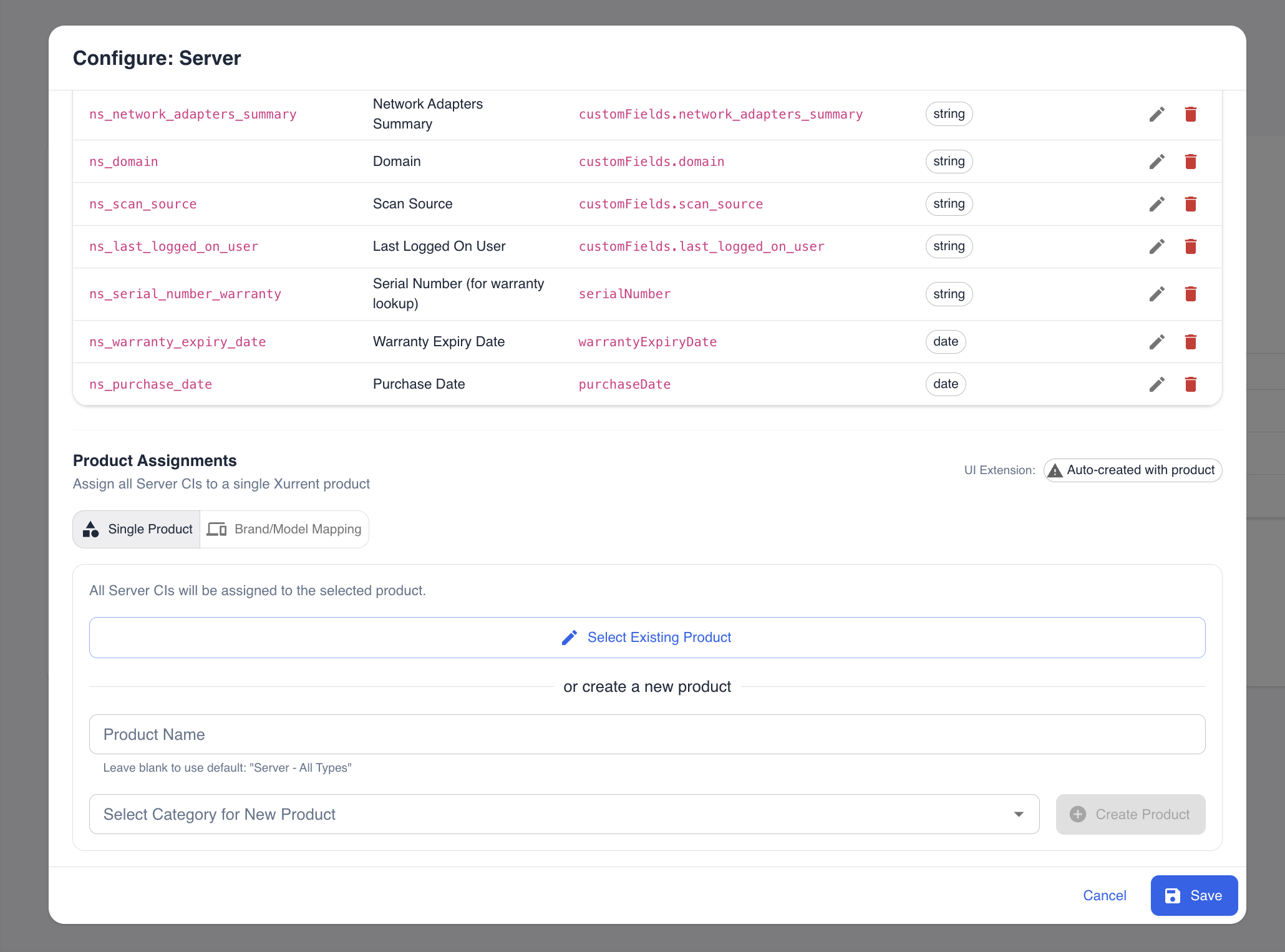
- Select Single Product mode
- Choose between:
- Select Existing Product: Choose from your Xurrent products
- Create New Product: Create a new product in Xurrent
- If creating a new product:
- Enter a product name (e.g., "Generic Server")
- Select a product category
- Choose whether to create UI Extension with custom fields
- Click Save
This will map ALL CIs of this type (e.g., all Servers) to the same Xurrent product.
Option B: Brand/Model Mapping
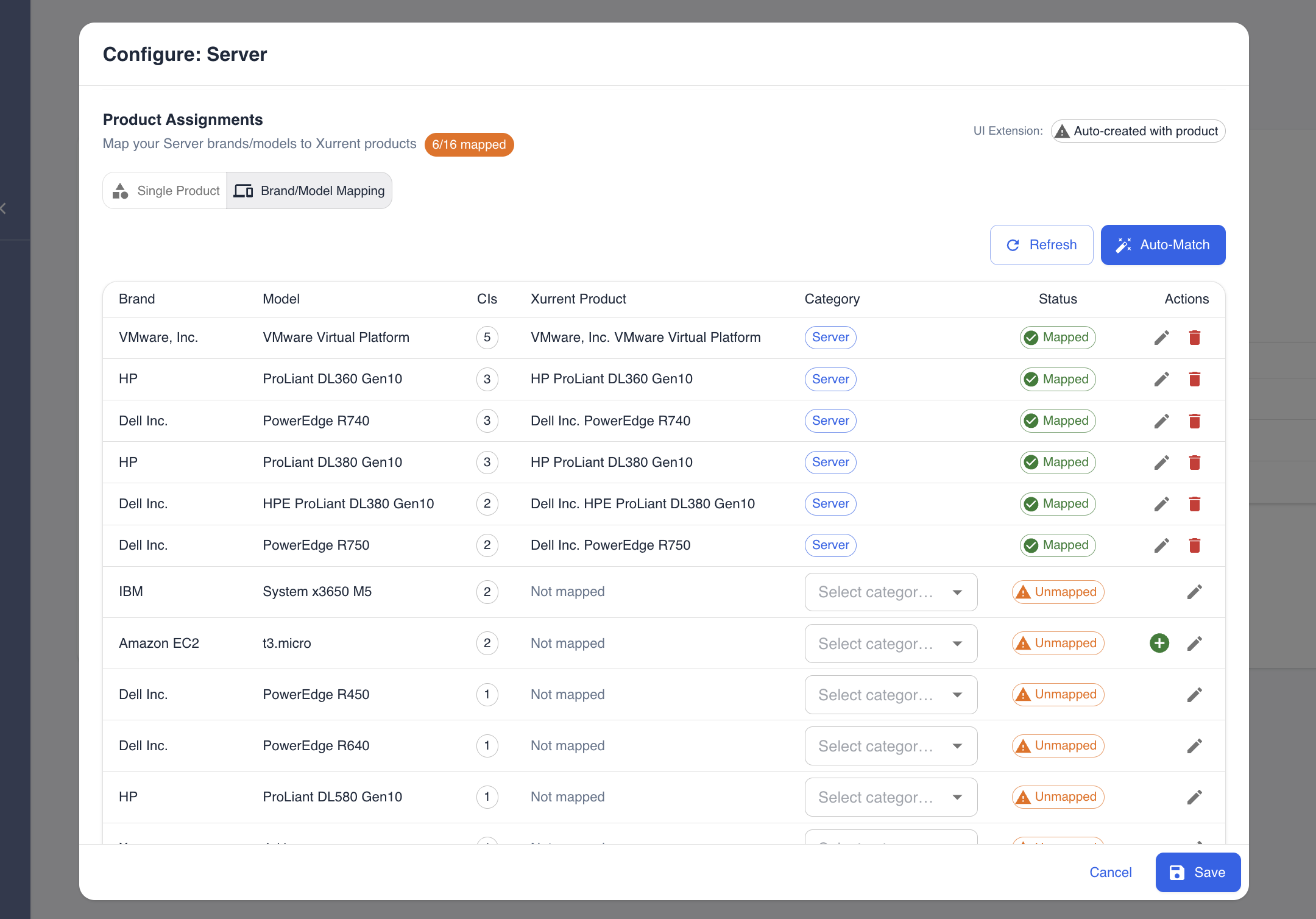
- Select Brand/Model Mapping mode
- Tripl-i will analyze your CIs and show all unique brand/model combinations
- For each combination, you can:
- Select Existing Product: Choose a matching Xurrent product
- Create New Product: Create a specific product for this model
- Auto-Match: Let Tripl-i automatically find matching products
- View the CI Count to see how many assets will use each mapping
- Click Save Mappings
This provides precise mapping where, for example, "Dell PowerEdge R740" servers go to one product and "HP ProLiant DL380" servers go to another.
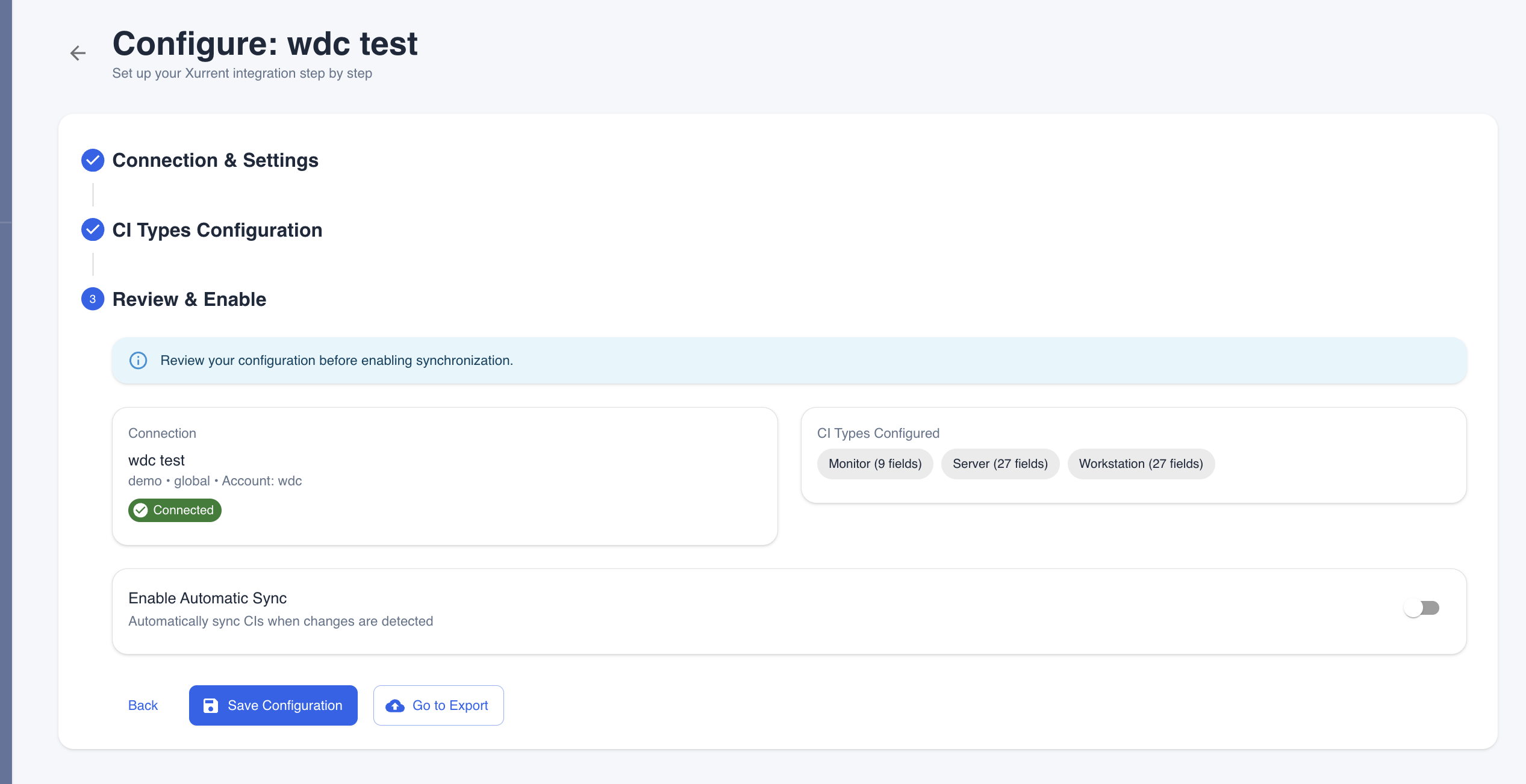
Step 4: Review and Complete
- Review all your configured CI types and mappings
- Verify the mapping strategy for each type
- Click Finish to save your configuration
- You'll be redirected to the configuration detail page
Method 2: Classic Configuration View
The Classic View provides direct access to all settings in a tabbed interface, ideal for managing existing configurations.
Accessing Classic View
- Navigate to CMDB → Integrations → Xurrent
- Click on an existing configuration
- You'll see four tabs: Configuration, Product Mapping, Field Mapping, and Export
Configuration Tab
This tab contains your basic connection settings:
Connection Settings:
- Name
- Environment
- Region
- Account ID
- Authentication method (OAuth or Bearer Token)
- Default Support Team
- Optional: Default Supplier
Actions:
- Test Connection: Verify your credentials
- Save Configuration: Save changes
- Sync Configuration: Refresh teams and products from Xurrent
Product Mapping Tab
This tab provides full control over CI-to-product mappings.
Mapping Strategy Toggle:
- Switch between Category Mapping (Single Product) and Product Mapping (Brand/Model)
- This is a global setting that affects all CI types
Category Mapping (Single Product Mode):
- Click Add CI Type
- Select a CI type from the dropdown
- Choose an existing Xurrent product
- Optionally create a UI Extension
- Click Save
Product Mapping (Brand/Model Mode):
- Click Add CI Type
- Select a CI type
- View all brand/model combinations for that type
- For each combination:
- Click Select Product to choose existing
- Click Create Product to create new
- Use Auto-Match to find matching products automatically
- Review the Mapping Status column:
- ✅ Mapped: Product assigned
- ⚠️ Unmapped: Needs configuration
- Save individual mappings or use Bulk Actions
Advanced Features:
- Refresh Combinations: Reload brand/model data from database
- View CI Count: See how many CIs will use each mapping
- Edit Mapping: Change product assignment
- Delete Mapping: Remove a CI type from sync
Field Mapping Tab
Configure how Tripl-i CI fields map to Xurrent custom fields.
Standard Mappings: Tripl-i automatically maps common fields:
- Name → CI Name
- Serial Number → Serial Number
- Manufacturer → Brand
- Model → Model
- IP Address → CI IP Address
- Status → CI Status
- Location → Site
Custom Field Mappings:
- Click Add Field Mapping
- Source Field: Select the Tripl-i CI field
- Xurrent Field ID: Enter the custom field ID from your UI Extension
- Field Label: Display name for the field
- Field Type: text, date, number, etc.
- Transformation: Optional (e.g., "uppercase", "lowercase", "date-format")
- Click Save
Using Templates: Tripl-i provides pre-configured field mapping templates:
- Server Template
- Workstation Template
- Monitor Template
- Network Device Template
Click Load Template to auto-populate fields for your CI type.
Export Tab
Manage CI synchronization to Xurrent.
Export Options:
- Select CI Types: Choose which types to export
- Batch Size: Number of CIs per batch (recommended: 50)
- Export Mode:
- Full Export: Export all CIs matching criteria
- Incremental Export: Only CIs changed since last sync
- Click Export to Xurrent
Initial Matching: If you already have CIs in Xurrent, use Initial Matching to link them:
- Click Run Initial Matching
- Tripl-i searches Xurrent for matching CIs by:
- Name
- Serial number
- Asset tag
- Matched CIs are linked automatically without creating duplicates
Export Progress:
- Real-time progress bar
- Count of created, updated, and skipped CIs
- Error reporting for failed exports
- Export log for troubleshooting
Schedule Exports (Future): Configure automatic synchronization:
- Daily, weekly, or monthly schedules
- Time of day preferences
- Incremental vs. full sync
AI Change Manager Setup
Enable AI-powered risk analysis for change requests in Xurrent.
Enabling AI Change Manager
- Navigate to your Xurrent configuration
- Scroll to the AI Change Manager section
- Toggle Enable AI Change Manager
- Click Setup AI Change Manager
What Gets Created
When you enable AI Change Manager, Tripl-i automatically creates:
- Webhook: Receives notifications when changes are created in Xurrent
- UI Extension: Adds custom fields to display AI analysis results:
- AI Risk Level (Low, Medium, High, Critical)
- AI Risk Score (0-100)
- Technical Risk Score
- Business Risk Score
- Total Impacted Systems
- Critical Systems Affected
- Business Impact Assessment
- Estimated Downtime
- Pre-Change Recommendations
- During-Change Recommendations
- Post-Change Recommendations
- AI Confidence Score
- Task Template: "AI Risk Assessment" template for the analysis task
- Automation Rule: Automatically triggers AI analysis when a change is created
How It Works
- Change Created: Someone creates a change request in Xurrent affecting Tripl-i-synced CIs
- Automation Triggered: Xurrent's automation rule detects the change
- Webhook Fired: Xurrent sends webhook notification to Tripl-i
- AI Analysis: Tripl-i's AI analyzes:
- The CI being changed (hardware, software, dependencies)
- Change details (type, scope, justification)
- Historical incidents and known issues
- Business criticality and user impact
- Results Updated: Analysis results are written back to the Xurrent task
- Note Added: A summary note is added to the change for quick reference
Understanding AI Risk Analysis
Risk Scores (0-100)
| Score | Risk Level | Recommendation |
|---|---|---|
| 0-25 | Low | Routine approval process |
| 26-50 | Medium | Standard review recommended |
| 51-75 | High | Detailed review required |
| 76-100 | Critical | Executive approval recommended |
Analysis Components
Technical Risk:
- Complexity of the change
- Technical dependencies
- Potential for technical issues
- System compatibility
Business Risk:
- Impact on business operations
- Service availability
- Financial implications
- Customer impact
Dependency Risk:
- Cascading effects on dependent systems
- Integration points affected
- Third-party dependencies
- Data flow impacts
Historical Risk:
- Past incidents with similar changes
- Previous failures or rollbacks
- Known issues with affected systems
Recommendations
The AI provides actionable recommendations in three phases:
Pre-Change:
- Preparation steps before implementation
- Backup requirements
- Testing recommendations
- Communication plans
During Change:
- Monitoring points during implementation
- Verification steps
- Rollback triggers
- Real-time checks
Post-Change:
- Validation steps after completion
- Monitoring periods
- Performance checks
- Documentation requirements
Best Practices
Choosing a Mapping Strategy
Use Single Product Mode when:
- You have standardized, homogeneous hardware
- Product-level reporting is sufficient
- Quick setup is a priority
- You have fewer than 5 distinct hardware types
Use Brand/Model Mapping when:
- You have diverse hardware from multiple vendors
- You need detailed reporting by specific models
- Warranty tracking is important
- You want to track lifecycle by model
- You have more than 5 distinct hardware configurations
Product Mapping
- Map all CI types before running large exports
- Use descriptive product names (e.g., "Dell Server R740" vs. "Product-123")
- Verify product IDs exist in Xurrent before mapping
- Test with a small batch (10-20 CIs) before full export
- Create consistent naming conventions for products
Export Strategy
Initial Setup:
- Start with ONE CI type (e.g., Servers)
- Export 5-10 CIs as a test
- Verify in Xurrent that:
- CIs appear correctly
- Custom fields are populated
- Products are assigned
- Relationships are created
- If successful, export remaining CIs for that type
- Repeat for other CI types
Ongoing Maintenance:
- Schedule regular exports (daily or weekly)
- Use incremental export to sync only changes
- Monitor export logs for errors
- Run full export monthly to catch any missed updates
Field Mapping
- Use field mapping templates as a starting point
- Test transformations on a few CIs before applying to all
- Document any custom field mappings for your team
- Keep field IDs consistent between environments (QA → Prod)
AI Change Manager
- Review AI recommendations as guidance, not absolute rules
- Adjust risk thresholds based on your organization's tolerance
- Use the confidence score to gauge analysis reliability
- Provide feedback on incorrect assessments (future feature)
- Combine AI insights with human expertise and organizational knowledge
Troubleshooting
Connection Issues
Problem: Test connection fails
Solutions:
- Verify your credentials are correct
- Check that your API token/OAuth app has the required scopes
- Ensure your network allows connections to Xurrent's GraphQL API
- Verify you've selected the correct region
- For OAuth: Check that Client ID and Client Secret match exactly
- Check Xurrent service status at status.xurrent.com
Problem: "Invalid Account ID" error
Solution: Verify your Account ID in Xurrent:
- Log in to Xurrent
- Go to Settings → Account
- Copy the Account ID exactly (case-sensitive)
Export Errors
Problem: CIs fail to export
Solutions:
- Ensure product mappings are configured for the CI type
- Verify the default support team is set
- Check that required fields are populated on the CI:
- Name (required)
- Serial number (recommended)
- Manufacturer and model (for brand/model mapping)
- Review the export log for specific error messages
- Test connection before exporting
Problem: "Product not found" error
Solution:
- Go to Product Mapping tab
- Click Sync Configuration to refresh products from Xurrent
- Verify the product exists in Xurrent and is not archived
- Check the product category is correct
Problem: Duplicates created in Xurrent
Solution:
- Run Initial Matching first to link existing CIs
- Check if CIs already have
sourceIDpopulated - Use serial numbers for reliable matching
- Contact support if duplicates persist
Missing Data
Problem: Custom fields not appearing in Xurrent
Solutions:
- Verify field mappings are configured correctly
- Ensure the Xurrent UI Extension includes the custom fields
- Check that field IDs match between systems (case-sensitive)
- Verify field types are compatible (text, number, date)
- Test with a single CI first
Problem: Relationships not syncing
Solutions:
- Ensure BOTH CIs in the relationship are synced to Xurrent
- Check that relationship types are supported
- Verify the "Sync Relationships" option is enabled
- Run export again after both CIs exist in Xurrent
Brand/Model Mapping Issues
Problem: "No combinations found" message
Solution:
- Verify CIs have manufacturer and model fields populated
- Run a discovery scan to populate hardware details
- Check that customFields contain the data
- Manually add manufacturer/model to a few CIs for testing
Problem: Can't find matching Xurrent product
Solution:
- Use the "Create New Product" feature
- Ensure product category is selected
- Check product naming matches your convention
- Use search filters in product selector
AI Change Manager Issues
Problem: Changes don't receive AI analysis
Solutions:
- Verify the webhook is enabled in Xurrent
- Check that the automation rule is active
- Ensure the change affects CIs synced from Tripl-i
- Review webhook delivery logs in Xurrent
- Check that Tripl-i webhook endpoint is accessible
- Verify the task template exists
Problem: AI results not showing in Xurrent
Solutions:
- Check that UI Extension was created successfully
- Verify custom fields match the AI field mappings
- Ensure the change form includes the UI Extension
- Refresh the Xurrent page
- Check the task notes for raw AI output
Problem: "Insufficient permissions" error
Solution:
- Review required OAuth scopes (see Prerequisites)
- Regenerate OAuth token with all scopes
- Test connection again
- Contact Xurrent support if scopes are correct but error persists
Frequently Asked Questions
Q: Which mapping strategy should I use?
A: Use Single Product mode for quick setup and homogeneous environments. Use Brand/Model mapping for diverse hardware requiring detailed tracking and reporting.
Q: Can I switch between mapping strategies after initial setup?
A: Yes, you can change the mapping strategy at any time. However, this may require remapping all CI types. Existing CIs in Xurrent will need to be updated or re-exported.
Q: How often should I sync CIs?
A: We recommend syncing after significant discovery runs or when CI data changes. For most organizations, daily or weekly syncs are sufficient. Use incremental export for daily updates.
Q: Can I sync bidirectionally?
A: Currently, the integration syncs from Tripl-i to Xurrent. Changes made directly in Xurrent are not synced back. This prevents conflicts and maintains Tripl-i as the source of truth for discovered data.
Q: What happens if I delete a CI in Tripl-i?
A: Deleted CIs are not automatically removed from Xurrent. You can mark them as "removed" status in Tripl-i, which will update the status in Xurrent during the next sync.
Q: How do I handle multiple Xurrent environments?
A: Create separate Xurrent configurations (one for Production, one for QA) and manage them independently. Use consistent product IDs across environments for easier promotion.
Q: Is the AI Change Manager available for all accounts?
A: AI Change Manager requires appropriate licensing and is available for accounts with AI features enabled. Contact your account manager for details.
Q: Can I customize the AI analysis fields?
A: The AI analysis fields are standard, but you can customize which fields appear in your Xurrent UI Extension. Contact support for advanced customization needs.
Q: What if I have CIs without manufacturer or model information?
A: Use Single Product mode for these CIs, or run discovery scans to populate hardware details. You can also manually populate manufacturer/model fields for important assets.
Q: How do I monitor export success?
A: Check the Export tab for real-time progress during exports. Review the export log for detailed status. Use Xurrent's CI list to verify synced CIs appear correctly.
Q: Can I exclude certain CIs from export?
A: Yes, use the filter options in the Export tab. You can exclude by status, location, tags, or custom criteria. Only CIs with configured product mappings will be exported.
Q: What happens if the OAuth token expires?
A: Tripl-i automatically refreshes OAuth tokens when they expire (with a 60-second safety buffer). If refresh fails, you'll receive a notification to re-authenticate.
Related Documentation
Support
For additional assistance:
- Documentation: Review the Xurrent API Documentation
- Support: Contact your Tripl-i support representative
- Community: Join the Tripl-i user community forum