Active Vulnerabilities
The Active Vulnerabilities page is your central hub for managing security vulnerabilities discovered across your infrastructure. This dashboard provides real-time visibility into your organization's vulnerability exposure and helps you prioritize remediation efforts.
Accessing Active Vulnerabilities
- Navigate to SAM in the main menu
- Under Vulnerability Management, click Active Vulnerabilities
Understanding the Dashboard
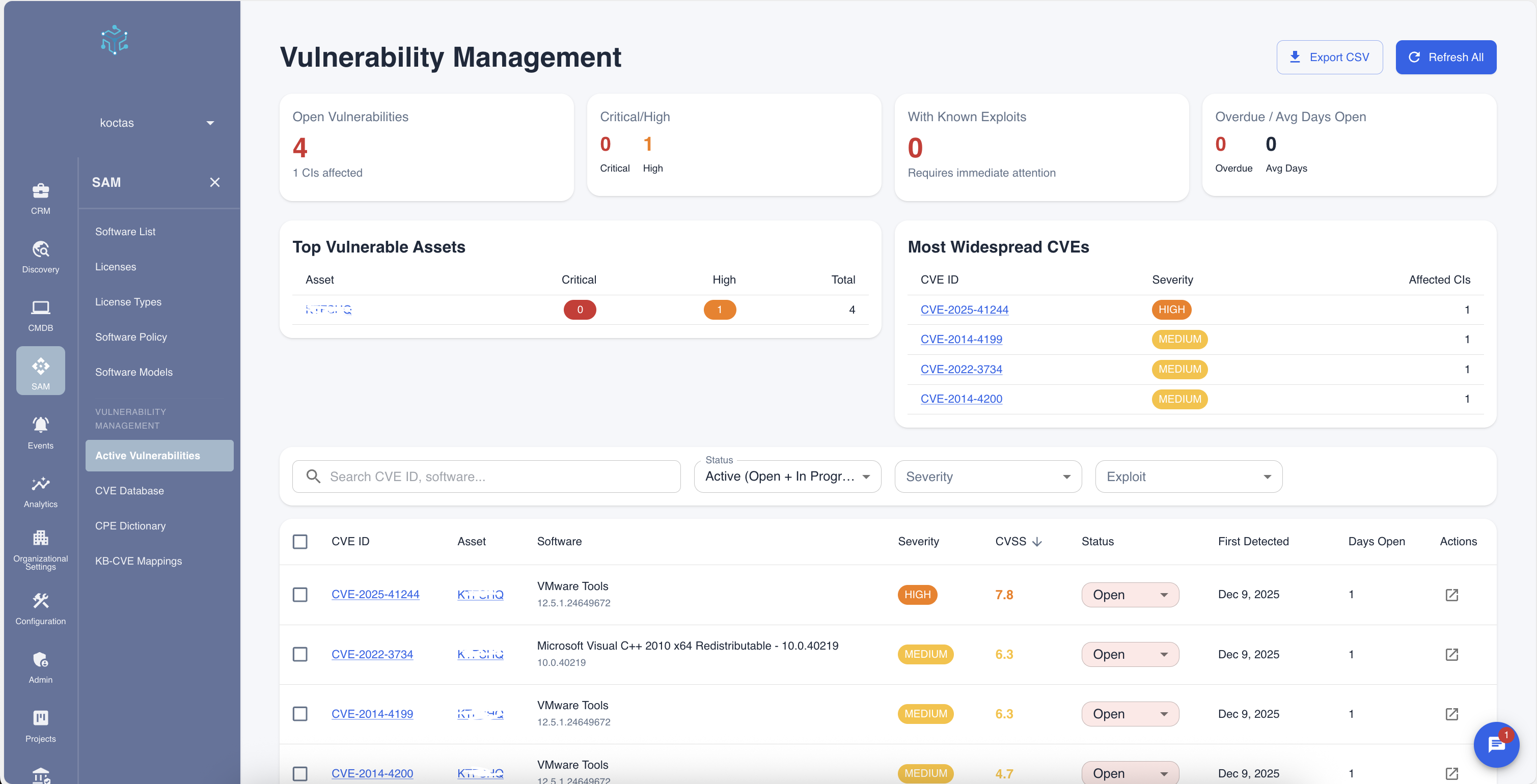
The dashboard is organized into several key sections:
Summary Statistics
At the top of the page, four key metrics provide an at-a-glance view of your vulnerability status:
| Metric | Description |
|---|---|
| Open Vulnerabilities | Total number of unresolved vulnerabilities across all assets |
| Critical/High | Count of the most severe vulnerabilities requiring immediate attention |
| With Known Exploits | Vulnerabilities that have confirmed exploit code available |
| Overdue / Avg Days Open | Metrics showing remediation timeliness |
Top Vulnerable Assets
This section highlights the assets with the highest vulnerability counts, helping you identify which systems need the most attention:
- Asset: The server or workstation name
- Critical: Number of critical severity vulnerabilities
- High: Number of high severity vulnerabilities
- Total: Total vulnerability count for the asset
Click on any asset name to navigate directly to that asset's details in the CMDB.
Most Widespread CVEs
This panel shows vulnerabilities that affect multiple assets in your environment:
- CVE ID: The unique vulnerability identifier (clickable link to details)
- Severity: Visual indicator of severity level (Critical, High, Medium, Low)
- Affected CIs: Number of configuration items affected by this CVE
This helps identify vulnerabilities where a single patch or fix could have the greatest impact.
Working with the Vulnerability List
Below the summary panels, you'll find a detailed list of all active vulnerabilities.
Filtering Options
Use the filter bar to narrow down the vulnerability list:
- Search: Search by CVE ID or software name
- Status: Filter by workflow status (Open, In Progress, etc.)
- Severity: Filter by severity level (Critical, High, Medium, Low)
- Exploit: Filter to show only vulnerabilities with known exploits
Vulnerability Table Columns
| Column | Description |
|---|---|
| Checkbox | Select multiple vulnerabilities for bulk actions |
| CVE ID | Unique identifier (click to view full CVE details) |
| Asset | The affected server or workstation |
| Software | The vulnerable software and version |
| Severity | Visual severity indicator with color coding |
| CVSS | Numerical score (0-10) indicating severity |
| Status | Current workflow status |
| First Detected | When the vulnerability was first discovered |
| Days Open | Number of days since discovery |
| Actions | Quick action menu |
Color-Coded Severity Levels
Vulnerabilities are color-coded for quick identification:
- 🔴 Critical (CVSS 9.0-10.0) - Requires immediate attention
- 🟠 High (CVSS 7.0-8.9) - Should be addressed promptly
- 🟡 Medium (CVSS 4.0-6.9) - Plan for remediation
- 🟢 Low (CVSS 0.1-3.9) - Address as resources permit
Managing Vulnerabilities
Changing Status
To update the status of a vulnerability:
- Click the Status dropdown in the vulnerability row
- Select the new status:
- Open: Newly discovered, awaiting action
- Acknowledged: Confirmed and prioritized
- In Progress: Remediation work has begun
- Mitigated: Temporary controls in place
- Resolved: Vulnerability has been fixed
- False Positive: Incorrectly identified
- Risk Accepted: Accepted with documented justification
Bulk Actions
For managing multiple vulnerabilities at once:
- Select vulnerabilities using the checkboxes
- Click the Bulk Actions button
- Choose the desired action (change status, assign, etc.)
Viewing Vulnerability Details
Click on any CVE ID to view complete vulnerability details including:
- Full vulnerability description
- CVSS scoring breakdown
- Affected software versions
- Available patches or fixes
- External references (NVD, vendor advisories)
Exporting Data
To export vulnerability data for reporting or analysis:
- Click the Export CSV button in the top-right corner
- The export includes all vulnerabilities matching your current filters
- Data is downloaded as a CSV file for use in Excel or other tools
Refreshing Vulnerability Data
To manually trigger a vulnerability refresh:
- Click the Refresh All button
- The system will re-scan all assets for vulnerabilities
- New vulnerabilities will appear, and resolved ones will be updated
Schedule regular discovery scans to ensure vulnerability data stays current. New vulnerabilities are discovered daily, and software updates may introduce or resolve vulnerabilities.
Automatic Resolution
Tripl-i automatically resolves vulnerabilities when the underlying issue is addressed. This reduces manual work and ensures your vulnerability list stays accurate.
When Vulnerabilities Auto-Resolve
Vulnerabilities are automatically marked as Resolved when:
| Scenario | Resolution Method | Example |
|---|---|---|
| Software Upgraded | Upgraded to non-vulnerable version | Chrome updated from 119 to 137 |
| Patch Installed | Windows KB patch fixes the CVE | KB5066133 installed |
| Software Removed | Vulnerable software uninstalled | Legacy application removed |
Tracking Auto-Resolved Items
Auto-resolved vulnerabilities include:
- Resolution method: Shows whether resolved by upgrade, patch, or removal
- Resolution timestamp: When the system detected the resolution
- Audit trail: Complete history preserved for compliance
Why Vulnerabilities May Reappear
A previously resolved vulnerability may return if:
- Software is downgraded to a vulnerable version
- A patch is uninstalled
- The same vulnerable software is reinstalled
Understanding Why Certain Vulnerabilities Don't Appear
Tripl-i uses intelligent filtering to reduce false positives:
Version-Aware Matching
Only vulnerabilities affecting your exact software version are shown. For example, if a CVE affects Chrome versions 100-136, but you have Chrome 137 installed, it won't appear.
Patch Consideration
For Windows systems, installed patches (KBs) are checked against known KB-CVE mappings. If you have a KB installed that fixes a particular CVE, that vulnerability is automatically excluded.
Next Steps
- Learn about the CVE Database for researching vulnerabilities
- Explore the CPE Dictionary to understand software identification
- Review KB-CVE Mappings for Windows patch intelligence