Warranty Management
Warranty Management helps you track hardware warranty status, plan for renewals, and avoid unexpected support costs. NopeSight integrates with both Dell and Lenovo APIs for automatic warranty retrieval.
Overview
NopeSight provides comprehensive warranty tracking capabilities:
- Automatic Warranty Lookup: Integration with Dell and Lenovo APIs for automatic data retrieval
- Expiration Tracking: Monitor warranty end dates across your fleet
- Service Entitlements: Understand what coverage each asset has
- Manual Entry: Add warranty data for any asset from any vendor
Dell Warranty Integration
Prerequisites
To use Dell warranty lookup, you need:
- A Dell TechDirect API account
- API Key and API Secret from Dell
- Assets with valid Dell service tags
Configuration
- Navigate to Settings > System Preferences
- Find the Dell API section
- Enter your credentials:
- Dell API Key: Your TechDirect API key
- Dell API Secret: Your TechDirect API secret
- Click Test Connection to verify
- Save the configuration
How Dell warranty lookup works
The Dell warranty lookup follows this flow: Asset Discovered → Service Tag Extracted → Authenticated with Dell API → Warranty Data Retrieved → CI Updated
- Service Tag Identification: Dell assets are identified by their 5-7 character alphanumeric service tag (serial number)
- API Authentication: OAuth 2.0 authentication with Dell's API gateway (tokens are cached for performance)
- Warranty Query: Service tag is submitted to Dell's v5 warranty API
- Data Processing: Response is parsed and normalized
- CI Update: Warranty information is stored with the asset
Dell warranty information retrieved
| Field | Description |
|---|---|
| Warranty Status | Current status: Active, Expired, or Unknown |
| Warranty Expiry Date | Date when warranty coverage ends |
| Warranty Type | Primary warranty coverage type |
| Ship Date | Original shipment date from Dell |
| Product Code | Dell product identifier |
| Product Description | Full product name and model |
| Service Entitlements | Detailed list of all warranty services |
Dell service entitlement details
Each Dell entitlement includes:
| Field | Description |
|---|---|
| Type | Service level description |
| Start Date | When the service began |
| End Date | When the service expires |
| Service Level Code | Dell's internal service code |
| Service Level Group | Category of service |
Common Dell entitlement types:
- Parts Only Service: Hardware replacement parts coverage
- Onsite Service After Remote Diagnosis: Technician dispatch after remote troubleshooting
- Next Business Day Onsite: Priority response for business-critical systems
- ProSupport: Premium 24/7 support with faster response times
Dell batch lookups
For large environments, NopeSight supports batch warranty lookups:
- Up to 100 service tags per API request
- Automatic rate limiting to avoid API throttling
- Background processing for large batches
- Progress tracking and error reporting
Lenovo Warranty Integration
Prerequisites
To use Lenovo warranty lookup, you need:
- A Lenovo Support API account
- A ClientID from Lenovo
- Assets with valid Lenovo serial numbers
Configuration
- Navigate to Settings > System Preferences
- Find the Lenovo API section
- Enter your credentials:
- Lenovo API Client ID: Your Lenovo Support API client identifier
- Save the configuration
How Lenovo warranty lookup works
The Lenovo warranty lookup follows this flow: Asset Discovered → Serial Number Extracted → Authenticated with Lenovo API → Warranty Data Retrieved → CI Updated
- Serial Number Identification: Lenovo assets are identified by their serial number (minimum 4 characters)
- API Authentication: Simple ClientID header authentication (no OAuth required)
- Warranty Query: Serial number is submitted to Lenovo's v2.5 warranty API
- Data Processing: Response is parsed and normalized
- CI Update: Warranty information is stored with the asset
Lenovo warranty information retrieved
| Field | Description |
|---|---|
| Warranty Status | Current status: Active or Expired (from InWarranty field) |
| Warranty Expiry Date | Latest warranty end date across all entitlements |
| Warranty Type | Primary warranty coverage type |
| Product | Lenovo product identifier |
| Purchase Date | Original purchase date |
| Ship Date | Original shipment date |
| Country | Country of origin |
| Warranty Entitlements | List of all warranty services |
| Contract Entitlements | List of active service contracts |
Lenovo entitlement types
Lenovo warranties distinguish between two types of coverage:
Warranty Entitlements:
| Type | Description |
|---|---|
| BASE | Standard manufacturer warranty |
| UPGRADE | Warranty upgrade purchased at time of sale |
| EXTENDED | Extended warranty purchased after original sale |
| INSTANT | Instant warranty coverage |
Contract Entitlements:
| Field | Description |
|---|---|
| Contract Number | Service contract identifier |
| SLA | Service Level Agreement description |
| Status | Contract status (active, expired) |
| Start/End Dates | Coverage period |
Lenovo batch lookups
Lenovo's API supports multiple serial numbers in a single request:
- Submit comma-separated serial numbers in one API call
- Automatic handling of individual lookup failures
- Results mapped back to the correct CI records
Viewing Warranty Information
Individual asset view
- Navigate to CMDB > Configuration Items
- Select an asset
- View the Warranty Information section in CI Details
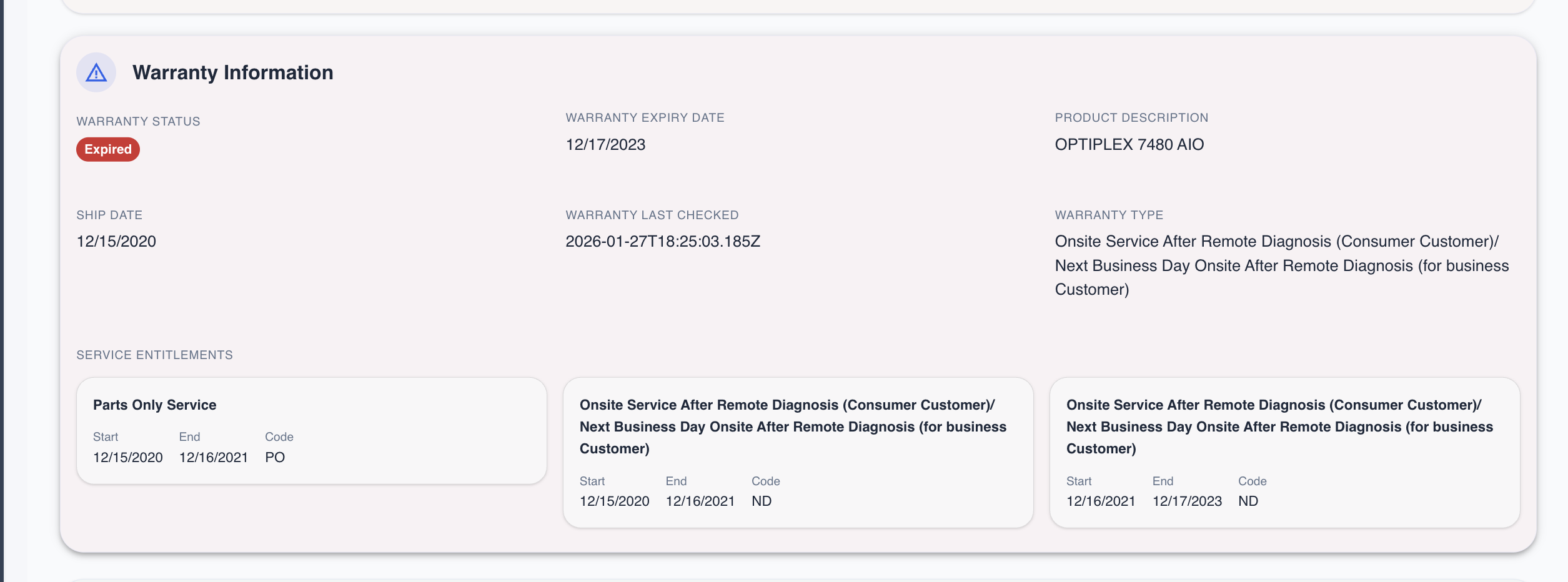
The warranty panel displays:
- Overall warranty status (Active/Expired badge)
- Key dates (expiry, ship date, last checked)
- Product information
- All service entitlements with their coverage periods
Bulk warranty view
For fleet-wide warranty visibility:
- Navigate to Reports > Asset Reports
- Select Warranty Status Report
- Filter by:
- Warranty status (Active/Expired)
- Expiration date range
- Site or department
Manual Warranty Entry
For assets from vendors without API integration:
- Open the asset in CMDB
- Navigate to the Asset section
- Enter the Warranty Expiry Date
- Save changes
For detailed warranty information, use the CI's custom fields to record:
- Warranty provider
- Contract number
- Coverage type
- Support contact
Warranty Refresh
On-demand refresh
To refresh warranty data for a single asset:
- Open the asset
- Click Refresh Warranty
- Wait for the API response
- Review updated information
Scheduled refresh
Configure automatic warranty refresh:
- Navigate to Settings > Scheduled Tasks
- Find Warranty Refresh
- Configure the schedule (recommended: weekly)
- Select scope (all supported assets or specific groups)
Best Practices
Proactive Management
- 30-Day Warning: Set alerts for warranties expiring in 30 days
- Quarterly Review: Review all expiring warranties quarterly
- Renewal Planning: Use warranty data for budget planning
Data Quality
- Regular Refresh: Schedule weekly warranty refreshes
- Verify Serial Numbers: Ensure serial numbers and service tags are correctly recorded
- Track All Assets: Include warranty data for all hardware, not just servers
Cost Optimization
- Compare Coverage: Review entitlement levels before renewal
- Bundle Renewals: Negotiate better rates by bundling renewals
- Right-Size Coverage: Match coverage level to asset criticality
Multi-Vendor Management
- Consistent tracking: Use the same warranty fields regardless of vendor
- Identify vendor: Check manufacturer field to determine which API to use
- Fallback to manual: For unsupported vendors, enter warranty data manually
Troubleshooting
Common Issues
"No warranty data found"
- Verify the serial number/service tag is correct
- Dell service tags are 5-7 alphanumeric characters
- Lenovo serial numbers must be at least 4 characters
- Check if the asset is from a supported vendor
"Authentication failed"
- Dell: Verify API Key and API Secret in system preferences; check if credentials have expired
- Lenovo: Verify ClientID in system preferences
"Rate limit exceeded"
- Wait 60 seconds before retrying
- Reduce batch size for large lookups
- Check scheduled job frequency
API Status
- Dell: Dell TechDirect Status
- Lenovo: Lenovo Support API
Related Topics
- Site Management - Physical location tracking
- Lifecycle Management - Asset status tracking
- Device Aging - Age tracking and refresh planning
- Discovery Module - Asset discovery